


Artify.photo is the top pick for most users who want high-fidelity room previews, personalized framing, and print-ready ordering in one place. If you only test one tool, start here.
- Best for most: Artify combines 3D room visualization, artist collaborations, and museum-grade giclée printing, so you go from preview to finished canvas without switching platforms.
- When to look elsewhere: If you need a free, no-account gallery wall planner for a one-time DIY install, GalleryPlanner handles that job better.
Table of Contents
- What do wall art customization and visualization tools actually do?
- How do you choose the right wall art tool for your needs?
- Which tools made the shortlist, and how do they compare?
- How we evaluated and tested these tools
- How to visualize your wall art in five steps
- Why Artify.photo is the top pick for most readers
- Key Takeaways
- The gap between “good enough to preview” and “good enough to print”
- See your art on your wall before you order
- Useful sources and further reading
- FAQ
What do wall art customization and visualization tools actually do?
These tools fall into four overlapping categories: AR/3D room visualizers, AI art generators, mockup creators, and gallery wall planners. Understanding the difference saves you from downloading the wrong app.
Core features to look for:
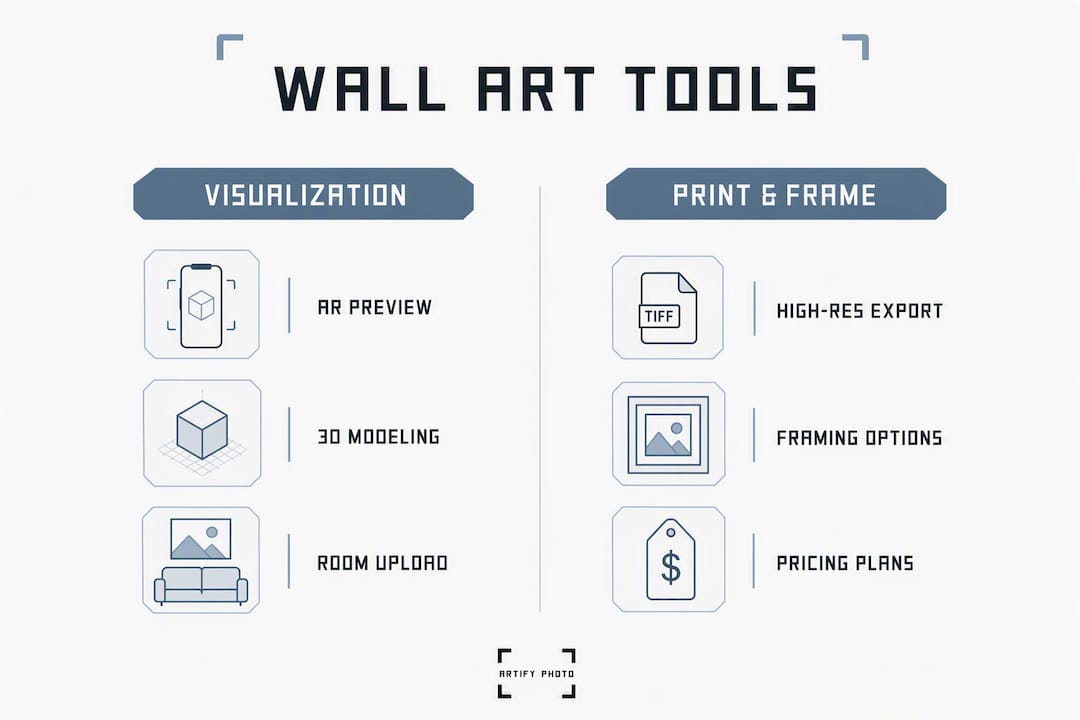
- AR or 3D room preview: Places a digital version of your art on your actual wall, either live through your phone camera or on a photo you upload.
- Upload-your-own-room-photo: You snap a picture of your wall, upload it, and the tool composites art onto it. Most tools on this list support this.
- Auto-scaling and perspective correction: Better tools analyze room perspective, ambient lighting, and furniture scale so the rendered art aligns with shadows and depth, rather than just pasting a flat image.
- Virtual framing and layout tools: Try different frame finishes or arrange multiple pieces in a gallery grid before committing.
- Print-ready export: The output file is large enough (typically 300 DPI at your target print size) to send to a printer without upscaling artifacts.
Pro Tip: Shoot your room photo from eye level, roughly 5 feet high, with the wall centered in the frame. A straight-on shot gives the tool the cleanest perspective data and produces the most accurate mockup.
One feature worth checking before you upload anything: local-first vs. cloud storage. Browser-based gallery planners like GalleryPlanner autosave to your browser’s local storage and never send your photos to a remote server. Cloud-based AI tools are faster and more powerful, but your room photos do leave your device. For most home decorators, that trade-off is fine. For designers working with client homes, it is worth knowing.
How do you choose the right wall art tool for your needs?
The honest answer is that most people pick the wrong tool because they optimize for the wrong thing. A tool with a beautiful interface that can’t export at 300 DPI is useless the moment you want to print.
Decision checklist:
- Does it support uploading your own room photo, or only staged stock scenes?
- What is the maximum export resolution, and can it reach 300 DPI at your target print size?
- Is it web-based, iOS, Android, or all three?
- Free, freemium, subscription, or one-time purchase? (WallDecor.io, for example, offers a lifetime access option for a one-time fee.)
- Does it integrate with your e-commerce store or website?
- Where does your data go — local browser or cloud server?
- How steep is the learning curve for your team or clients?
Three trial questions to run before committing:
- Can you upload a room photo at 3000×2000 pixels and get a clean composite without visible seams?
- Can you export a 24×36-inch print file at 300 DPI, or does the tool watermark or cap resolution on free tiers?
- How long does generation take? Advanced AI visualizers typically run 56–60 seconds for a full render; anything over two minutes signals a bottleneck.
Red flags in a trial: forced watermarks on exports, no way to input your wall’s actual dimensions, generation times over two minutes, and no stated maximum export resolution.
Matching criteria to use case:
- Hobbyist at home: Prioritize ease of upload, free tier, and mobile availability.
- Artist selling prints: Prioritize export resolution, e-commerce integration, and storefront features.
- Gallery or retailer: Prioritize website widget support, batch mockup capability, and white-label options.
For room-by-room sizing guidance before you even open a visualizer, Artify’s room-by-room wall art guide is a practical starting point.
Which tools made the shortlist, and how do they compare?
Artify.photo leads the list because it is the only tool here that combines visualization, artist collaboration, framing, and on-demand printing in a single checkout flow. Every other tool on this list does one or two of those things well.
| Tool | Platform | AR / 3D Preview | Upload Your Room Photo | Scaling Method | Max Export / Print-Ready | Pricing | Best For | E-Commerce Integration | Ease of Use |
|---|---|---|---|---|---|---|---|---|---|
| Artify.photo | Web | 3D photo-based | Yes | Manual dims + AI | Print-ready (museum giclée) | Freemium / per-order | Most users: preview + order + frame | Yes | Easy |
| WallDecor.io | Web | AI photo-based | Yes | AI auto-detect | Up to 5K / print-ready | Freemium / one-time purchase option | Rapid AI transforms + high-res export | No | Easy |
| Ideal House | Web | AI photo-based | Yes | AI (perspective + lighting) | High-res | Free / freemium | Photorealistic accuracy | No | Easy |
| Wallnora | Web | Mockup-based | Yes | Manual | Up to 2048×2048 PNG/PDF | Freemium | Prompt-based art generation | No | Easy |
| GalleryPlanner | Web (browser) | No (layout only) | Local only | Manual dims | JSON / PNG / PDF | Free (open-source) | DIY gallery wall install | No | Moderate |
| WallApp | Web / Mobile | Photo-based | Yes | Manual | Standard | Free | Quick hobbyist preview | No | Very easy |
| Artrooms | Web | Photo-based (staged) | Staged scenes | Manual | Standard | Freemium | Staged mockups for listings | Limited | Easy |
| ArtPlacer | Web | Photo-based | Yes | Manual dims | Standard | Subscription | Galleries + website widgets | Yes | Moderate |
| ArtSee | iOS | Photo-based | Yes | Manual | Standard | Free / freemium | Mobile-first quick preview | No | Very easy |
| Wallary | Web / Mobile | Layout planner | Limited | Manual | Standard | Freemium | Multi-frame gallery wall layout | No | Easy |
| Voun | Web | Photo-based | Yes | Manual | Standard | Freemium | Artist storefront + preview | Limited | Easy |
| Instagram (AR/mockups) | iOS / Android | AR (live) | Mockup posts | Auto (AR) | Social-res only | Free | Social proof + AR engagement | Limited | Very easy |
| Photofunia | Web / Mobile | Staged scenes | No (pre-made) | Fixed | Standard | Free | Fun quick staged mockups | No | Very easy |
| iArtView | iOS | Photo-based | Yes | Manual | Standard | Free / freemium | Simple mobile scale preview | No | Very easy |
| Shoot and Sell | Web | Mockup-based | Staged | Manual | Print-ready | Subscription | Photographer listing images | Limited | Moderate |
| Mockup Scene Creator | Web | Staged scenes | Staged | Manual | High-res | Freemium | Polished marketing images | No | Easy |
A few tools worth calling out specifically:
WallDecor.io is the fastest path to a print-ready file if you already have your art. Its AI upscaling reaches 5K resolution, and the one-time purchase option offers affordable access for sellers who need volume without a monthly subscription.
ArtPlacer is the clearest choice for galleries and online retailers. Its website widget lets shoppers preview art on their own walls directly from a product page, which is a meaningful conversion tool for anyone running an e-commerce storefront.
Wallnora sits in a slightly different lane: it generates original art from text prompts in under 30 seconds and exports PNG/PDF files up to 2048×2048 pixels. That makes it useful for rapid ideation, though the resolution ceiling is lower than WallDecor.io’s 5K ceiling for large-format prints.
GalleryPlanner is the right call for anyone planning a physical installation. It stores everything locally in your browser, exports hanging guides with precise hook measurements, and never touches a cloud server. Designers working with client homes appreciate that privacy guarantee.
Instagram’s AR mockup features are genuinely useful for social-native sellers who want quick visual feedback from followers before committing to a print run. The resolution is social-grade, not print-grade, so treat it as a market-testing step, not a production step.
Photofunia, iArtView, WallApp, ArtSee, Artrooms, Voun, and Shoot and Sell each serve narrower niches: quick consumer previews, photographer listing workflows, or staged scene mockups. They are worth a free trial if their specific niche matches your workflow, but none of them close the loop from preview to print the way Artify does.
How we evaluated and tested these tools
Every tool on this list was assessed against the same criteria, using real room photos and test art files sourced from the United States market.
- Upload test: Submit a JPEG room photo at 3000×2000 pixels and a PNG art file at 300 DPI to each tool.
- Scaling check: Verified whether the tool accepted manual wall dimensions or relied on auto-detection, and whether the resulting composite looked proportionally accurate.
- Export check: Attempted to export at the highest available resolution and noted whether the file was print-ready at 300 DPI for a 24×36-inch print.
- Integration check: Tested whether the tool offered a website widget or API connection for e-commerce platforms.
- Generation timing: Recorded how long each AI-powered render took from upload to completed preview.
- Privacy check: Noted whether photos were uploaded to a remote server or processed locally.
Statistic callout: Advanced AI visualizers generate realistic wall redesigns in roughly 56–60 seconds and support high-resolution downloads up to 5K for print-ready quality.
Note: Features and pricing on these platforms change frequently. This evaluation reflects conditions as of early 2026. Always verify current specs on each tool’s website before committing to a paid plan.
How to visualize your wall art in five steps
This sequence works whether you are a homeowner testing a single canvas or a seller building listing images.
- Capture a clean room photo. Stand at eye level, roughly 5 feet from the floor, and shoot straight at the wall. Good natural light beats a flash. Avoid wide-angle distortion.
- Measure your wall space. Note the width and height of the area where the art will hang. Many tools ask for these dimensions to scale the preview accurately.
- Upload your art file. Use the highest-resolution version you have — at minimum, a 300 DPI file at the intended print size. A low-res file will look blurry in the preview and will not export cleanly.
- Adjust placement and framing. Resize the art to match your measurements, then try different frame finishes. Artify’s framing options let you test materials before ordering.
- Export or order. Save the mockup for client approval or social sharing, then export the print file or place your order directly.
Pro Tip: Place a known-width object in your room photo — a standard sofa is typically 84 inches wide. If the tool’s scaled preview makes your art look proportionally correct against that sofa, the sizing is accurate.
One underused step: save your mockup as a shareable image before you order. Sending a realistic preview to a partner, client, or social audience before printing is free market research.
Why Artify.photo is the top pick for most readers
Most visualization tools stop at the preview. Artify closes the loop: you see the art on your wall, choose a frame, and order a museum-grade print without opening a second tab.
Features that matter for real projects:
- 3D room previews that place your art in a photorealistic scene, not a flat composite.
- Personalized framing with material and finish options visible before checkout.
- Museum-grade giclée printing on demand, so the file you approved in the visualizer is the file that gets printed.
- Artist collaborations and a curated catalog of pre-made collections, useful when you want something beyond your own photos.
- E-commerce integration for sellers who want to embed preview tools in their own storefronts.
The personalization angle matters more than it sounds. Industry commentary consistently frames personalized wall art as emotionally resonant decor, not decorative filler — and that shift is exactly why buyers increasingly want to see a piece on their specific wall before committing. Artify’s visualizer is built around that moment of confidence.
Three use cases where Artify is the clearest fit:
- Consumer wanting a statement canvas: Upload a photo, preview it in your living room, pick a frame, and order. The whole flow takes under ten minutes.
- Artist needing a storefront and print quality: Artify’s artist sign-up connects independent creators to on-demand printing and a buyer audience, with royalties per print.
- Gift buyer on a deadline: Pre-made collections ship on demand, and the visualizer helps the buyer confirm the piece works in the recipient’s space before purchasing.
For sellers comparing Artify to standalone visualizers, the wall art printing review on Artify’s blog covers print fidelity and production workflow in detail.
Key Takeaways
Artify.photo is the strongest single tool for most users because it combines high-fidelity previews, personalized framing, and museum-grade print ordering in one platform.
| Point | Details |
|---|---|
| Top overall pick | Artify.photo covers preview, framing, and print ordering in one flow, making it the best starting point for most users. |
| AI render speed | Advanced AI visualizers complete a full room render in roughly 56–60 seconds; anything significantly slower signals a workflow bottleneck. |
| Export resolution matters | Confirm a tool can produce 300 DPI at your target print size, or offers an upscaling path to 5K, before committing to a paid plan. |
| Privacy trade-off | Local-first tools like GalleryPlanner keep photos in your browser; cloud-based AI tools are faster but do upload your room photos to remote servers. |
| Artify for most workflows | Start with Artify’s 3D visualizer and pre-made collections; switch to a specialist tool only when your workflow requires a feature Artify does not cover. |
The gap between “good enough to preview” and “good enough to print”
Most articles about wall art visualization tools treat the preview as the finish line. It is not. A mockup that looks convincing on a phone screen can still produce a blurry 24×36-inch canvas if the underlying file is under-resolved.
The tools that actually serve buyers and sellers well are the ones that treat the preview as step one and the print-ready export as step two. That is a short list. WallDecor.io’s 5K upscaling and Wallnora’s PNG/PDF exports get close. Artify closes the gap entirely by connecting the visualizer directly to a production print workflow.
The other thing most comparisons miss: scale accuracy is not just about entering dimensions. A tool that analyzes perspective and lighting renders art that looks like it belongs in the room. A tool that just pastes a flat image onto a photo looks like a school project. That difference is what separates a tool you use once from one you rely on.
See your art on your wall before you order
Artify’s visualizer lets you upload a room photo, place any piece from the pre-made collections or your own image, and preview it in a 3D scene with your choice of frame finish. No subscription required to start.
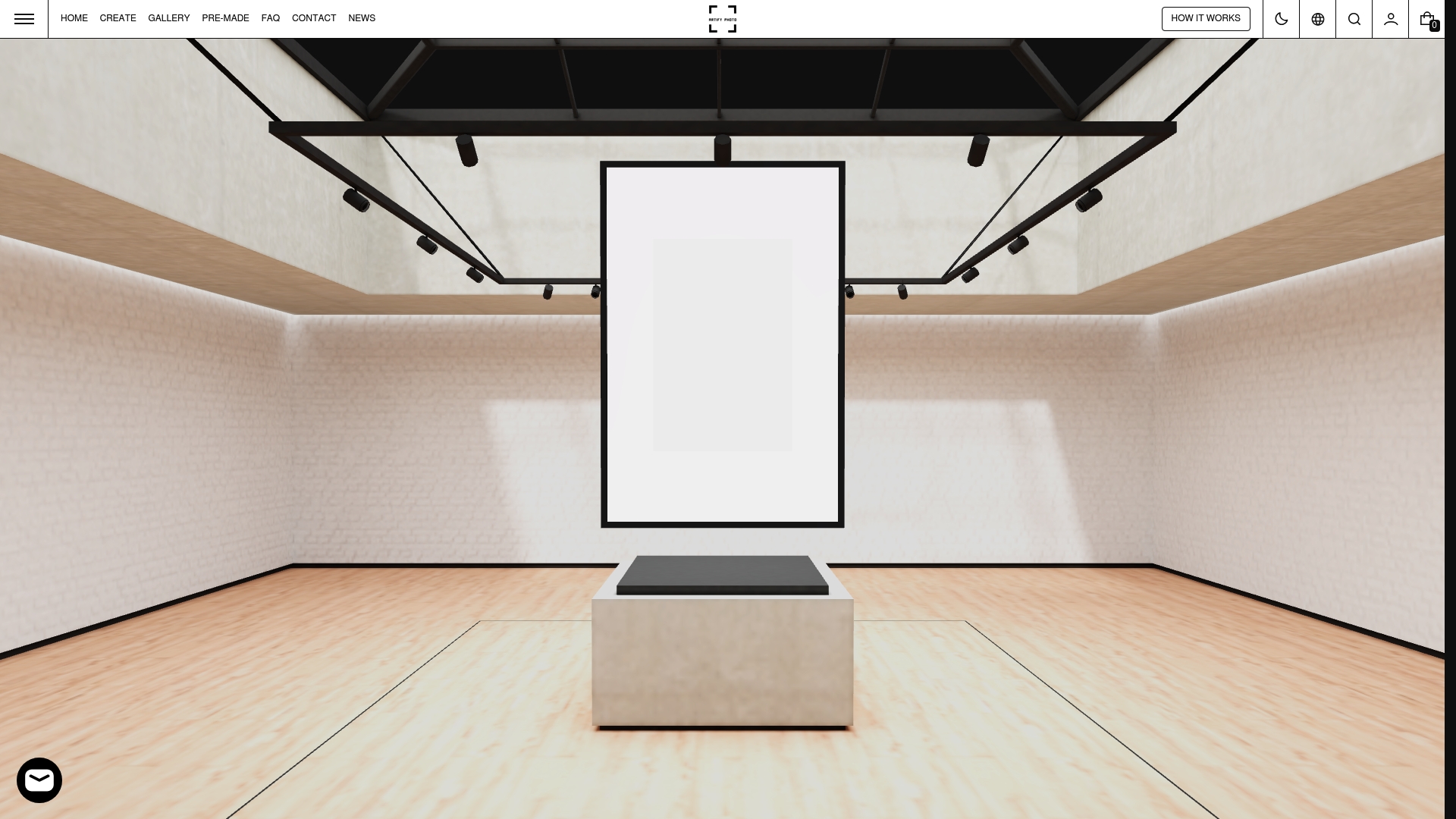
After previewing, you can export a shareable mockup, adjust framing, and place a print order in the same session. Prints are produced on demand as museum-grade giclée, so the file you approved is the file that ships. If you want to build a gallery wall, the pre-made collections include curated groupings sized and styled to work together.
Start by uploading a photo of your wall at artify.photo and placing your first piece. The preview takes seconds; the framing decision usually takes longer.
Useful sources and further reading
- Design and decorate your walls with AI — WallDecor.io: Covers AI generation timing, 5K upscaling, and one-time pricing options for the visualizer.
- AI Home Wall Art Visualizer — Ideal House: Explains how perspective and lighting analysis improve mockup realism and reduce buyer uncertainty.
- Custom Wall Art Generator — Wallnora: Details on prompt-based art generation, generation speed, and PNG/PDF export limits.
- Free Online Gallery Wall Designer — GalleryPlanner: Source for local-first storage, layout styles, and export options including hanging guides.
- Gallery Designer (open-source) — GitHub: Technical detail on JSON/PNG/PDF exports, auto-placement, and installation measurement features.
- Wall Art Printing Review — Artify: Artify’s own review of print quality, AI tool usage, and production workflows.
- How to Choose Wall Art: A Room-by-Room Guide — Artify: Practical sizing and placement guidance to use before or alongside any visualizer.
FAQ
What is the best tool for visualizing wall art at home?
Artify.photo is the strongest all-in-one option: it combines a 3D room visualizer, personalized framing, and on-demand museum-grade printing in a single platform. For a free, no-account preview, WallApp or ArtSee are the simplest starting points.
How do I create custom wall art from my own photo?
Upload a high-resolution photo (300 DPI at your target print size) to a platform like Artify.photo, choose an artistic style or framing option, preview it in a room scene, and place a print order directly. The whole process typically takes under ten minutes.
What is the 2/3 rule for wall art sizing?
The 2/3 rule says your art should cover roughly two-thirds of the wall width above a piece of furniture, such as a sofa or bed. Most visualizer tools let you input your wall and furniture dimensions to check this proportion before ordering.
How long does AI wall art generation take?
Advanced AI visualizers typically complete a full room render in roughly 56–60 seconds. Prompt-based art generators like Wallnora can produce a new image from a text prompt in under 30 seconds, though that is art creation, not room visualization.
What file format should I export for large-format printing?
Export as PNG or PDF at 300 DPI for your target print size. If your tool caps resolution below that, look for a built-in upscaling option — WallDecor.io, for example, supports upscaling to 5K for large-format print readiness.